
Chromebook and its users have a friendly relationship.
Printers, on the other hand, have a very different story to tell!
Printing from a Chromebook wasn’t as easy as you would think in the earlier days. Not every printing machine is compatible to work with Google Cloud and Chromebooks were all about online services. So, clashes between Chromebooks and printers were bound to happen.
However, over time, Chrome has released many updates that made it easier for both of these technologies to get along. Now you can set up both wired and wireless printers to print from your Chromebook in a blink of an eye!
In this article, we will discuss everything related to how to use printer with Chromebook. The process is quite easy and if you follow properly there should be printed papers churning out of your machine at any minute!
What is A Chromebook?
Chromebook is a new type of laptop that’s designed to run with the Linux-based Chrome OS.
The specialty of this device is that its operating system has cloud storage where most of the application and data exists on the cloud rather than staying in the machine itself.
Chromebook uses different Google built-in programs and has multiple layers of security to protect the device.
The first Chromebook got released in late 2017. By March 2018, Chromebooks got so popular that they made up almost 60% of the school computers in the United States. According to Google, the multilayer security that’s provided with this device eliminates the need to install any anti-virus in its system.
What Does Chromebook Use for Printing?
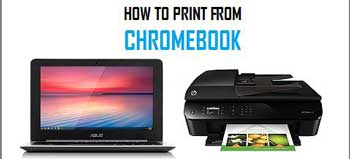
Chromebook used to have a very popular service called “Google Cloud Print” that could print over the web from anywhere in the world. Any printer that had support for connecting to the cloud services can be used for printing your document. This service was first introduced in 2010.
Now we have good news and bad news to share with you guys!
Without any further ado, let’s start with the bad one, shall we?
From January 1, 2021, Google has stopped supports for Google Cloud Print technology. Which means, devices across all operating system have lost the ability to print using Google Cloud Print!
Scared?
Now how will you be able to print?
Here are the good news guys! Over the past few years, Google has made some impressive improvement that enables us to print directly to your Chromebook without needing this service at all!
Printing from your Chromebook is now as easy as 1-2-3. And today, we are going to guide you through this easy process step-by-step.
How to Use Printer with Chromebook?
How to Set Up An Wireless Printer?
If you have a Wi-Fi enabled printer, you can print your documents using the following instructions:
- Make sure your printer and the Chromebook are linked to the same network.
- Tap on the “Time” section that’s situated at the bottom-right corner of the screen and select the “Gear’ icon to go to settings.
- Go to the bottom of the option and select “Advanced”.
- Find the “Printing” section and select the “Printers” option from there.
- Click “Add Printer”.
- Search for your desired printer from the list and then add it. If you can’t find the printer you are using currently, click on “Add Nearby Printers” and then add it.
- Once added, a window will pop-up that asks you to enter a name, printer’s IP address, IPP or the protocol and a queue (ipp/print).
- Fill in all the information (Check out the “Tips” section if you are confused about any field) and click “Add”.
- That’s about it! The printer is now ready to print any document you want!
How to Set Up Printer With A USB Connection?
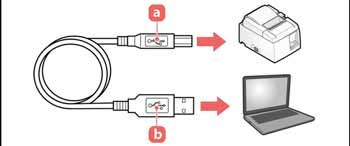
If you are using an old printer that doesn’t have access to wi-Fi or for some reason having trouble connecting to the network right now, then this one is for you!
- Take a USB cable and connect it to your Chromebook. Plug one end of the cable to your printer and the other end to the computer. Depending on what type of device you are using and which model, you may need an adapter for this purpose.
- Go to Chromebook’s settings and bring up the search box. Type “Print” in it.
- Click on “Printers” and then click the “Add Printer” button.
- Find your printer’s name from the option and click on it.
- To finish the process, click the blue-colored “Add” button and start printing as you wish!
How to Print From A Chromebook Using Android Apps?
The most recent versions of Chromebooks have many extra applications including Google Play Store. You can download an official Android app like “Papercut Mobility Print Chrome” app and set it up in the following way for printing documents:
- Connect the printer to your Chromebook’s network.
- Install the “Mobility Print” app.
- Open the page you want to print.
- Select the “Mobility Print” app that’s identified by the Papercut icon as the printer.
- Select the content and click “Print” to finish the process.
Chromebook Tips for Printing
If you follow all the instructions mentioned above and still not be able to print properly, check to make sure if the printer is connected to the internet. Also, you should check the power cord so that it’s connected to the wall correctly.
If your printer doesn’t show any specific printer as an option, try printing out the instruction manual of your printer and see how to add it to your Chromebook manually.
When asked to give the printer’s IP address, you should double-check to ensure you are putting in the IP address correctly. Do NOT confuse an IP address with Subnet Mask or IP Gateway.
For configuring the Chrome printer, you can give any name of your preference in the name field. The IP address field requires you to give the printer’s IP address.
You can find this info from the printer’s manual. The protocol should be changed to “HTTP” or “HTTPS”. And leave the printer PPD and Queue as it is.
Final Words
See?
That wasn’t that hard, was it?
We told you so!
Even though Cloud Print is dead, Chromebook owners shouldn’t have much problem if they know how to use printer with Chromebook in alternate ways.
While Windows has a dedicated driver for printers, Chromebook has a native built-in printing system that makes your task even easier! Hopefully, you have gathered enough ideas to print from your Chromebook easily from now on.