

Who doesn’t enjoy working on a MacBook, right?
Macs are the go-to laptop for video editors, photo editors, graphics designers, and other creative professionals. It comes with a high-definition display along with a wide viewing angle that offers a good viewing angle.
That being said, a screen filled with dust will be unclefraar, and brightness, sharpness, clarity, and vibrancy will reduce.
Well, you might think you will be able to clean the screen with just a piece of cloth. Turns out, that’s not the case. If you clean Macs’ display in the wrong method, not only will you damage the screen, but it might also start flickering.
Want to know how to clean Mac display without any issues and have a great viewing experience? Keep reading to find out!
Why MacBook’s Display Gets Dirtier Than Regular Monitors?
Are you wondering why the screens of laptops get dirtier than a normal monitor or TV?Well, laptops are more prone to dust due to the fact that the grim from your fingers and dead skin cells get attached to the keyboard while typing, and it shifts to the display when the screen is folded.
Laptops also produce a low amount of electrical charge that attracts dust and dirt. No matter what environment you are using the laptop in, the display will eventually get dirty.
How To Clean Mac Display- Multiple Ways
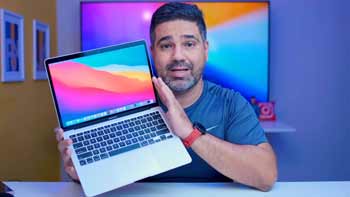
Dirt and dust are basically microscopic rocks, which can damage the display if cleaned in the wrong way. So, cleaning the display in the right method is necessary to maintain its quality.
Here are some effective methods that will help you clean the Mac display without any damage. You can opt for one according to your convenience. Have a look!
1. Use A Screen Cleaner
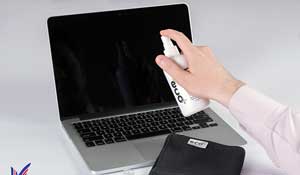
Screen Cleaners are the best for effortless cleaning, aren’t they?
Using a formula cleanser is the most effective way to remove the dust and debris off the display. Even Apple recommends using bleach-free and ammonia-free formulas to clean the MacBook’s display. You can also use a cleaner that has 70% isopropyl alcohol.
Let’s take a look at how you will be able to clean the Mac display using this method.
Recommended For Mac: EcoMoist Natural Screen Cleaner Spray best for mac
- Firstly, shut down the laptop and detach the charger so that it doesn’t damage due to the moisture of the liquid cleaner.
- Then, spray the screen cleaner on a microfiber cloth or an extremely soft cloth but don’t drench it.
- Start wiping the screen from top to bottom using the cloth with small circular motions.
- Take more screen cleaner in the cloth if necessary, and keep on buffing the display with light pressure until all the dust particles are removed.
2. Using Electronic Wipes
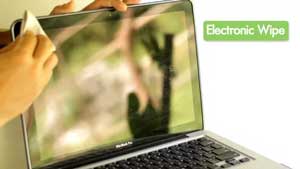
If you want a simple method that requires minimal effort to clean the Mac display, then using electronic wipes might be ideal for you.
Check out how you will be able to perfectly clean the MacBook’s display with the help of electronic wipes.
- Turn off the power of the laptop and keep it on a stable surface.
- Use a non-alcohol electronic sipe to clean the display.
- Start buffing the display either from top to bottom or from left to right and keep on whipping until the display is fully cleaned.
3. Wiping With A Moist Cloth
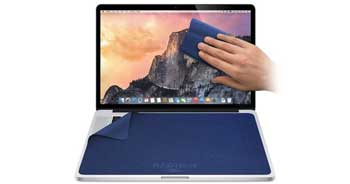
We recommend this cleaning process only if you run out of all other choices.
It is quite a risky process because if any water gets into the laptop, it will be damaged.
You will need fiber-free and static-free, along with a distilled water, to conduct this process.
- Dip a soft and non-abrasive cloth into distilled water but don’t use too much water.
- Release the excess water of the cloth by pressing it before wiping the display.
- Then, continuously wipe the screen multiple times from top to bottom and re-dampen the cloth if necessary.
Tips To Perfectly Clean Mac Display
If you have no experience in cleaning the MacBook’s display, then it will be quite tricky for you.
Here are some special tips to make the cleaning process effortless for you.
- The Macs’ screens are relatively light and delicate. So, you should hold the base or the top of the screen to decrease the danger of unintentionally damaging it as you clean.
- While cleaning the MacBook, you must detach it from the power adapter. The hardware of the laptop could get damaged whenever presented to the liquid cleaner. It could also give you a shock, particularly when the charger is connected.
- Don’t spray the screen cleaner on the display since it enhances the risk of getting moisture in the laptop’. The liquid shouldn’t go inside the laptop from the edges since it can short out your MacBook. So, you should always spray the solution on a cloth and wipe the screen with it.
- While choosing a screen cleaner, it’s best to avoid one with alcohol and bleach since they might damage the smooth surface of the screen and reduce the viewing angle.
- If you use a moist cloth to wipe the screen, don’t soak it with regular water since they contain minerals that are highly conductive of electricity and can cause a short circuit.
Final Words
MacBook offers top-notch display; they are bright and provide extremely sharp images with vibrant colors. But, dust and dirt on the screen will reduce the displays’ clarity and sharpness, making the viewing experience worse.
To have a fine viewing experience, it is more than necessary to clean the display regularly. Nonetheless, cleaning the MacBook display can be somewhat challenging for you if you are a new user.
Hopefully, our article will help you understand how to clean Mac display properly and make your display brighter.
Here also Vinyl Cutting Software for Mac
Mac Related accessories:
Our Reviews Of Presentation Remote for Mac
Our Reviews Of Top Quality Ram for MacBook Pro