
As soon as iPhone arrived with its smart software and high-resolution that beats even some of the top-notch DSLR’s, everything changed in the swipe of a finger!
And guess what?
With every new model, the photo quality just keeps getting better than the last!Still wish you had an old-school photo album at home to appreciate the photos a little bit more?
Consider your wish granted as with Polaroid Zink Printer now you can take photos on your iPhone and have it printed instantly too!
These pocket-sized printers are designed to connect to your iPhone and print the photos directly from the gallery without needing you to sit in front of a PC.
Want to learn how to use Polaroid Zink Printer with iPhone and preserve precious memories in prints? Keep reading to find out!
What Is A Zink Printer?
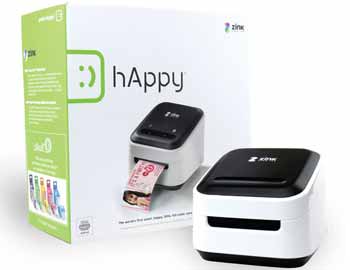
Zink is a short form for “Zero Ink”.
The term refers to a full-color printing technology that enables digital devices to print without requiring any ink cartridges.
Zinc technology was first introduced by Zink Holdings LLC, which is a US-based company that has headquarter in Billerica, Massachusetts.
The company developed the ZINK Zero Ink technology along with Zink paper which holds layers of ink in itself. Therefore, you don’t require any additional ink or other accessories for printing other than the printer and Zink paper.
Related: Best Wireless Printers for iPad Hope you like this.
How Does Polaroid Zink Printer Work?
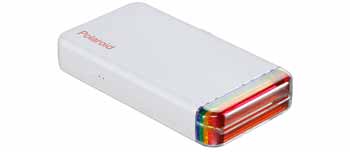
When you think about instant cameras, one word that should pop in your mind is Polaroid!Keeping up with the latest technology, Polaroid has collaborated with Zink Holdings to create pocket printers that can print pictures on the go!
Polaroid Zip Mobile Photo Mini Printer and Polaroid Mint Pocket Printer both use Zink technology to print photos.
The advantage of using a Polaroid Zink printer is that you only require Zink paper and mobile to get started. The Zink paper looks like a regular photo paper. However, it has yellow, cyan and embedded dye crystals inside it.
Once it goes inside the pocket device, it uses heat to activate and colorize the crystals for printing high-quality photos.
How To Use Polaroid Zink Printer With iPhone – Step By Step Guide
1. Download Polaroid App

- Go to iTunes and download the compatible Polaroid app (Polaroid Zip/Polaroid Mint) for your device.
- Once downloaded, the app should be shown in your phone’s app library.
2. Get The Printer Ready
- Open up the paper tray of the printer.
- Tap on the power button and hold it for 4- to 5 seconds. The light will turn on to indicate the device has started running.
- Tap on the power button and hold it for 4- to 5 seconds. The light will turn on to indicate the device has started running.
3. Connect The Printer With iPhone
- Launch the Polaroid app on your iPhone.
- Activate your iOS Bluetooth setting.
- Select “Connect to printer” and tap on the device’s name.
- A connection message will be displayed to let you know the iOS and printer have paired successfully.
4. Print From The Gallery
- To print a photo immediately from your phone’s gallery, select the “Quick Print” option in the app.
- The device will take approximately 1-minute to print the selected photo.
5. Print Captured Images
- If you want to print a new photo, tap the “Camera” option in the app and capture your picture.
- The new photo should be available in your phone’s gallery now from where you can select and print the image.
6. Edit A Photo Before Printing
Not liking your new photo? Wish you could make slight changes after the photo is taken?Welcome to the world of photo editing that’s even simpler with Polaroid apps!
Positioning
The positioning icon allows you to change the position of your photo from different angles. You can rotate the image clockwise, counterclockwise, mirror images left/right/up/down/sideways using this option.
Color Adjustment
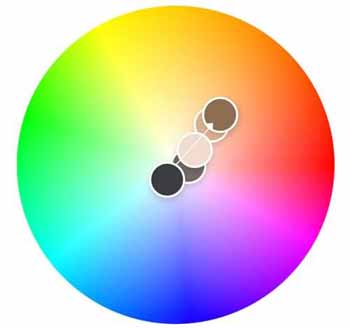
The color adjustment button has 3 options on display for you: Brightness, Contrast and Tint.To make your photos seem brighter, use the brightness slider to adjust the level of light before printing.
The contrast slider allows you to play with different levels of contrast. The Tint option lets you choose from the Red, Purple and Green slider to select your desired look.
Filter
The Polaroid app allows you to choose from your favorite filter before printing.Sepia, HDR, Graytone, Instafix, Sahara and many other exciting filters are available to make your social accounts all the more interesting!
Paint
You can use the Paint icon to draw over your photos.
There are 3 different options available in the paint section. The “Colors” option allows you to choose your desired palette for the paintbrush. “Size” gives you the liberty to increase or decrease the size of your paintbrush. In case, you have made a mistake, the “Eraser” button allows you to fix the wrong paint stroke.
Drama
If you want your printed photos to contain some special emojis, frames, accessories or some other effect, the rightmost icon is ready to help you out!Using the “Frame” option, you can surround your photo with garland, snowflakes and other holiday accessories. The “Smiley Face” option allows you to add different types of emoticons to your selected picture. Similarly, you can use the Accessories, Hearts, Holiday, Exclamations, Alphanumeric Characters options to edit your pictures in different ways.
7. Make Collages

- Select an image and tap the “Collage” button.
- Using the “+/-” option, add or remove images as many as you want.
- Tap the “Rotate” option to reposition your images if needed.
- Select the “Print Preview” option to get a view of what are you going to get afterward.
- Hit print and enjoy seeing your pictures framed in collages!
8. Additional Settings
Help
If you are confused or need help with anything regarding the phone app or the printer, there’s always the “Help” option to give you direction. You can also display the manual for your convenience.
Device Manager
The “Device Manager” option gives you some additional controls like Auto Exposure, Print Mode, Auto Power Off, Battery Life status, etc.
Buy Paper
When you run out of paper, you can order the Polaroid Instant paper online by tapping the “Buy Paper” icon from the app on your iPhone.
Tips For Using Polaroid Zink Printer With iPhone

- To run this Zink printer, your apple device must have at least iOS version 10 or higher.
- You can load 10 sheets at a time into the printer. Any amount more than these will cause overload and paper jam.
- While loading the paper, the blue calibration should be at the bottom and the rest of the papers should glossy side up. Failure to insert the papers correctly will cause your photos to come out blank while printing.
- If the viewfinder is blinking red, chances are, the firmware has failed to update. Check your iPhone’s screen message to find out and take the necessary steps to solve that issue.
- If you can’t install the app properly or the app keeps crashing even after installation, check to see if you using an iPhone 5 or higher. Also, make sure your software is updated to the latest version to enjoy the optimum experience.
Final Words
Polaroid Zink printers are fantastic pocket printers that fit almost anywhere!
Even a few years ago, we had to go Snappy Snaps to get our pictures printed in real life. At present, with the help of Zink technology, you can transfer images from iPhone to printed version so easily! All it needs is a little know-how.
Now that you’ve learned how to use Polaroid Zink printer with iPhone, you can take advantage of this while you are traveling, blogging or doing DIY projects.
Don’t forget to charge up the device when needed as depending on your model, the Zink printer can print 25- to 50 photos until it needs to recharge again.