
Ever noticed a uniquely creative piece pasted on the glass door of a shop or the wall of a friend’s room? Decals like that usually come with precise details, glossy finish and vibrant colors which can attract anyone passing by that area.
You can use them for promoting a business you just started, for advertising offers, or for a fun decoration project. However, printing them perfectly is the challenge.
The best way to make them is to print them out with an inkjet printer. That is why, we are here to walk you through the steps so that you know exactly how to make decals with inkjet printer.
Where To Design Your Decals?
For the best results, it is ideal to hire a graphic designer with the expertise to create your decal design using the most suitable medium. However, you don’t always have to depend on a third party like that. You can take matters into your own hands and make the design yourself using these softwares!
Firstly, Adobe Photoshop has gained unprecedented momentum in the last 15 years due to the emerging meme culture and other similar online trends of edited photos or videos.
Additionally, its Creative Cloud counterpart Adobe Illustrator has also become a crowd-favorite. Together, they are usually the top choices of graphic designing experts to create any motif including those for decals. You can use Photoshop for photo-based decals while Illustrator will be better for clean illustrations.
Other good choices are Adobe InDesign, Affinity Designer, Inkscape, CorelDraw, Sketch and GIMP. At the very least, you can use Microsoft Word for creating the decal designs. Although, they may not produce the cleanest cuts.
How To Make Decals With Inkjet Printer: Comprehensive Guideline
1. Turn On Printer And Connect

Once you have the decal design ready to go into the printing stage, begin the process by turning on the inkjet printer. Establish its connection to the computer where you just finished designing the decal. You may also need to install an app that works with the printer to materialize your sticker design.
2. Choosing Sticker Paper
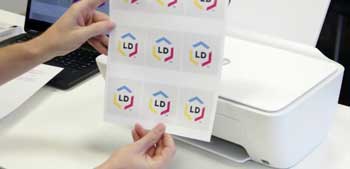
Similar to the standard printing process, now you will need to insert the sticker paper into the printer. You can choose from a variety of papers for making your decal. The most popular options in this regard are usually vinyl papers with a matte or glossy finish.
Among them, the matte one has a texture similar to standard paper. As a result, you will be able to write on it without smudging the ink in printer.
Although the glossy sticker paper cannot offer this practical advantage, it does bring in more brightness and thus can attract customers more easily as they pass by your store.
Additionally, check the instruction manual of your printer or check out its website to see if your chosen paper is compatible with it.
3. Software Instructions
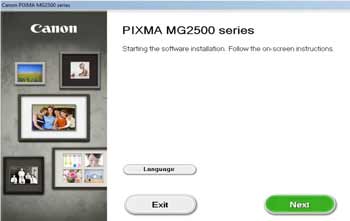
After choosing the sticker paper type, place a sheet of it into the printer’s tray. Make sure that its coated side is facing the inkjet head.
Then go to the software while the design file is still open and choose the option Print from its menu. Remember to select the right kind of paper since sticker paper or photo paper may not be listed as one of the top or default options.
When you have checked out all the properties and made sure they are the correct ones, proceed to pressing ‘print’ and finalizing the command. The inkjet printer should start printing out your decal very shortly.
4. Spray Sealant
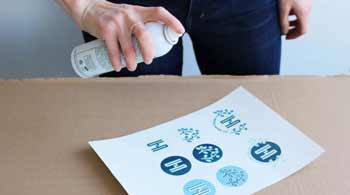
Remember to hold on to your patience and wait for 15 minutes or longer after the decal has come out from the printer. It needs this much time to dry out the raw design materials.
Then take the transfer paper and spray at least two coats of an acrylic sealant on it. Make sure they are both compatible with each other. You can get the information by checking the website of the transfer paper manufacturer.
Besides, you can also get directions for applying the sealant there which will get into more details about the number of coatings. Remember to let each coat dry enough before applying the next one.
5. Cut Out Decal
Now you have arrived at the hardest stage of making the decal – cutting it out from the print. Its difficulty lies in making the cuts precise and aligned.
That is why it is better to leave this part to vinyl cutters instead of doing it manually. They can help you to make labels, signs, magnets, stencils and other similar items too.
Especially for small business owners, they can be the game-changer since you can have more time to focus on other aspects and also get more decals ready to go in a given time.
But if you need to do it manually, start the process by cutting around the edges of your decal. Then focus on the small sections around it so that you can get a flawless cut. For clear transfer papers, leave a 0.25-inch border around the decal.
6. Soak Decal
Take a bowl where your decal will fit easily. Fill it up to two inches with water and then submerge the decal in it. Don’t worry if it seems to curl initially.
Leave it in this water for the period recommended on its package instructions. Another way to determine the time is to see if you can slide it back and forth between your fingers against its backing paper.
7. Place And Dry
Take the decal out and slide one side 0.25-inch off its backing. Now just place it on the target surface like your store wall or a plain coffee mug. Use a paper towel to wipe off the residual water, starting from the middle towards the edges. Wait until it dries completely.
You can place such decals on other objects too like a vase, candles, metals or any item with a smooth and hard surface.
Conclusion
Now that you know how to make decals with inkjet printer and where to design them, you can get started with the first-ever decal project of yours and see how it turns out!
In the beginning, it would be safer to try printing simple shapes like triangles and squares which have clean edges. From thereon you can upgrade your skills by incorporating more complex design materials into the process.
If you just want to use it on a scrapbook or journal cover, go for the matte finish. For decals to be used on cars, windows and similar areas, the glossy decals would be better.
Printer Related Post Hope You Like This: